How to remove a person from a photo
By Remove Your Ex · Updated October 27, 2026
Want it done for you? Try Remove Your Ex →How do I remove a person from a photo without losing the shot?
It depends on what the person covers. Try a free phone eraser for a small, separate figure; use Photoshop or a human editor when you need precise control over overlapping details. Remove Your Ex is a paid browser option when you want to choose the person by tapping, clicking, or describing them instead of drawing a mask. You don’t need to be removing an ex. Whichever method you use, keep the original and check the whole edited photo, not just the empty space.
Remove Your Ex is a browser tool for anyone with a photo they like and a person in it they don’t: you describe who should go in your own words, and an AI edit gives you the photo back without them.
Start with the right version of the photo
Use the original file if you have it, rather than a screenshot of a social post. A screenshot may include interface buttons, a tight crop, or less detail than the saved photo. If you took several shots, compare them before editing: a frame where the unwanted person stands apart from everyone else gives you fewer overlapping edges to repair.
- At the edge: see whether a crop keeps everything you care about.
- In open space: try the eraser already on your phone before paying.
- Across someone’s face or clothing: look for another frame first. Hidden detail has to be invented, not recovered.
For the framing decision, see cropping versus cutting someone out. For a comparison of editing tools, see which person-removal app fits your photo. This guide focuses on preparing one photo and judging the result.

 AI-edited
Choose one person, then review the edit
- Create an account and verify your email, then add a photo you have the right to edit. JPEG, PNG, WebP, AVIF, and HEIC are accepted, up to 20 MB per photo.
- Tap or click the person you want removed. Check that the selection identifies the right person before continuing. If you use “Describe them”, combine position and clothing, such as “the person on the left in the blue jacket”. A name alone doesn’t identify someone in the image.
- Buy credits if you need them, then start the edit. Creating an account is free, but editing is paid: one credit per photo. The pricing page lists the available packs.
- Compare the finished edit with your original before downloading and sharing it. Each photo includes one free second edit if you need another attempt. Failed edits return the credit automatically.
The aim is to remove your chosen person and fill the space behind them, not to move everyone else closer together. AI can change other details too. Selecting the right person is not a guarantee that every face, hand, or background feature will stay unchanged.
Check more than the spot where they stood
Look at the edit at a useful viewing size, then zoom in around the removed person’s outline. A small preview can hide a bent railing or a hand that no longer joins an arm. Compare these areas with the original:
- People you kept: faces, fingers, hair, and the edges of clothes.
- Lines behind the person: doors, paving, horizons, and furniture should still make visual sense.
- Evidence of the person: a remaining shoe, detached arm, shadow, or reflection can make the edit look unfinished.
- The composition: an empty space may look natural, or it may make another shot the better choice.
Edits are made at 1K resolution. Don’t treat them as a promise of print or canvas quality. If an important detail is still wrong after the included second edit, keep the original and consider a human retoucher rather than assuming another AI attempt will restore it exactly.
Keep a private copy, not a misleading record
Removing someone for your personal album is different from presenting the edit as evidence of who attended an event. Keep the untouched file separately, and make the edit clear when the change matters to someone viewing it. Only upload photos you have the right to use and edit.
Your photos are stored privately and deleted automatically after 90 days. Google doesn't use them to train its models under Google Cloud's Vertex AI terms.
The service is for people aged 18 and over and isn’t available in the EU/EEA, the UK, or Switzerland. Read the privacy policy and terms before uploading.
Get your photos back
Want to try it on your own photo?
Tap the person you want gone and get the photo back without them. One photo is $2.99, and a failed edit returns your credit.
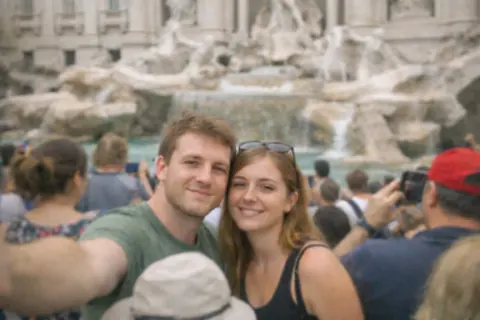
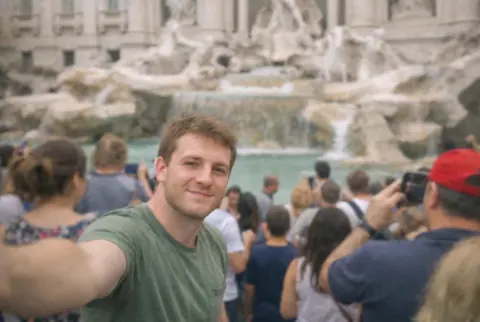 AI-edited
More guides
- How to Cut Someone Out of a Picture (Phone or Desktop)
- Best App to Remove a Person From a Photo, Compared