How to remove a photobomber or stranger from a photo
By Remove Your Ex · Updated October 27, 2026
Want it done for you? Try Remove Your Ex →What’s the best way to remove a photobomber or stranger from a photo?
It depends on where they stand and what they cover. Try a crop or a free phone eraser first, if your phone offers one, for a small pedestrian against a simple background. Photoshop suits deliberate, hands-on repairs when you have access and editing skills. Remove Your Ex is an option for selecting or describing one person without brushing around them. If they obscure a landmark’s important detail, another shot may be more faithful than any reconstructed result.
Remove Your Ex is a browser tool for anyone with a photo they like and a person in it they don’t: you describe who should go in your own words, and an AI edit gives you the photo back without them.
Is removal better than a crop or another shot?
An incidental pedestrian at the edge of a city view is different from a companion posing beside you. Start by asking whether the stranger distracts from the picture at all. A passerby can be part of the scene, and keeping them avoids introducing invented background detail.
- Near an edge: a crop may remove the distraction without rebuilding anything. Check that the new framing still includes the landmark and anyone you meant to photograph.
- Small and separated: a free phone eraser is a reasonable first choice against open sand, pavement, or sky. Availability depends on your device, app, account, and region.
- Covering important scenery: look for a second photo from the same spot. If a stranger blocks a statue’s face, a sign, or an ornate doorway, an edit has to invent the missing area rather than reveal it.
If your first attempt leaves a blurry patch or part of the person behind, see what to try when Magic Eraser won’t remove a person. That problem doesn’t mean another tool can recover scenery the camera never captured.
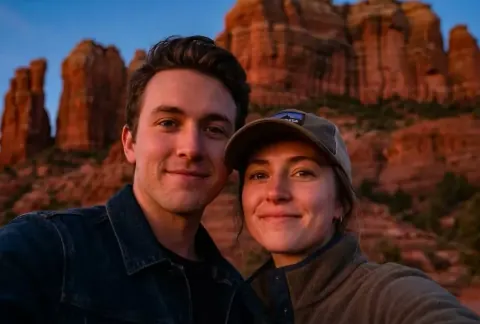
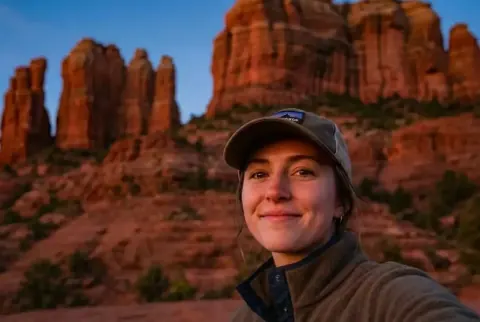 AI-edited
How do I identify one background person in Remove Your Ex?
- Choose the original you want to keep. Preserve an unedited copy. Sign in and verify your email before adding photos; selecting a local file is not the same as uploading it for a paid edit.
- Tap or click the person you mean. Check that the selection points to the pedestrian rather than your travel companion or someone else nearby. The edit targets one person per photo, not an entire crowd.
- Use “Describe them” where available. A small or partly hidden person may be hard to pick. Try “the pedestrian in a yellow jacket behind me, beside the left railing”. “The stranger” alone doesn’t distinguish people. Crowded photos can require a tap or click selection instead.
- Review the result against the original. Check the scenery as well as the person’s outline before deciding whether to keep the edit.
What can change behind a removed pedestrian?
- Shadows: look along the ground beyond the removed person. Check for an unexplained human shadow or a change to the shadows belonging to the people who remain.
- Reflections: inspect windows, water, and polished surfaces. Removing a visible person is not a guarantee that every reflection of them disappears.
- Railings and paving: follow lines through the edited area. Bent rails, repeated tiles, or broken steps can make the scene look different even when the pedestrian is gone.
- Landmark details: compare signs, stonework, and silhouettes with the original. Filled-in scenery is a reconstruction, not evidence of the landmark’s actual appearance behind the person.
- Your intended subjects: check faces, hair, hands, and clothing too, especially where the passerby overlaps a companion.
A square full of people is not a one-person removal task. If clearing the crowd is essential, choose another shot or keep a tighter crop rather than expecting one selection to empty the scene. One free second edit gives you another attempt, not a guarantee that hidden architecture or overlapping people can be reconstructed accurately.
If the person is a former partner in your travel album rather than an incidental passerby, see removing an ex from vacation photos for that different situation.
What should I know before uploading a travel photo?
Remove Your Ex accepts JPEG, PNG, WebP, AVIF, and HEIC files up to 20 MB each, with up to 10 photos per batch. Edits are generated at 1K resolution; compare the output with your original rather than assuming the same detail is retained. Each photo costs 1 credit and includes one free second edit. Failed edits return the credit. Product details and limits can change; current credit options are on pricing.
Your photos are stored privately and deleted automatically after 90 days. Google doesn't use them to train its models under Google Cloud's Vertex AI terms.
The service is for adults aged 18+ and is unavailable in the EU/EEA, the UK, or Switzerland. Only upload photos you have permission to edit, and review the Privacy Policy and Terms of Service.
Get your photos back
Want to try it on your own photo?
Tap the person you want gone and get the photo back without them. One photo is $2.99, and a failed edit returns your credit.
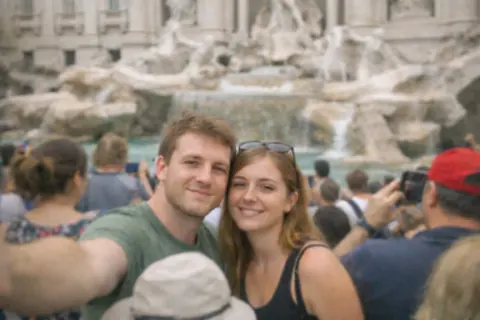
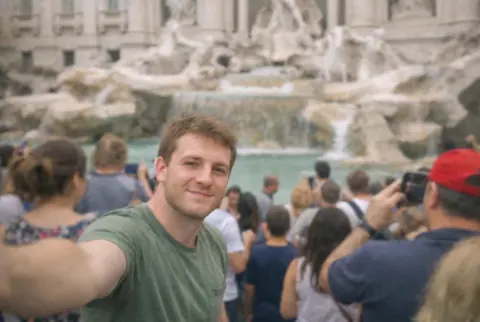 AI-edited
More guides
- How to Remove Your Ex From Vacation and Trip Photos
- Magic Eraser Won't Remove Your Ex? What to Try Next